- Date
Where do downloads go on iPhone? Save to Photos (2026)

How-to · November 2026
Where do iPhone downloads go?
A download is not the same as a photo in your library. Here is where the file lands – and how to save your headshots to Photos.
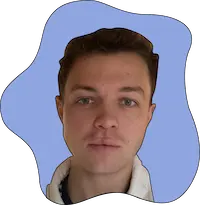
Photo: a real AI portrait made with Headshots.so
Last updated: 10 November 2026 · By Andreas, Headshots.so · Steps checked against the current download flow the same day
Where do downloads go on iPhone? Usually into the Files app, in the Downloads folder – not straight into Photos. That is why a headshot can look as if it vanished after you tap the download icon. On a computer, one click is enough. On iPhone, you still need to open the image and save it to Photos.
The short version
- 📂On iPhone, a download typically lands in Files → Downloads, not in the Photos app.
- 📱To put a headshot in your camera roll: tap the download icon, open the picture, touch and hold it, then tap Save to Photos.
- 💻On a computer, just click the download icon. The file goes to your Downloads folder.
- 🔗Once it is in Photos (or on your hard drive), you can use it on LinkedIn, in a CV and in your email signature.
- ✅Headshots.so: 54–150 portraits from $29, pay once, with a 100% satisfaction guarantee.
8,100
monthly US searches for «where do downloads go on iphone» (Google Ads data, pulled 10 Nov 2026)
5,400
monthly US searches for «save to photos»
$29
Starter pack price (54 headshots), live-checked 10 Nov 2026
54–150
portraits per pack, ready for you to download and keep
01Where iPhone downloads actually go
This is the part most people miss. Tapping the download icon in your Headshots.so gallery fetches the file. iOS does not automatically add it to your photo library. In Safari and most browsers, the file is stored in the Files app, usually under Downloads (on iPhone or in iCloud Drive, depending on your settings).
If you open Photos and cannot see the portrait, check Files first. The download probably succeeded – it just has not been saved to Photos yet. Apple’s own Save to Photos action is what moves a copy into your library.
| Device | What the icon does | Where to look next |
|---|---|---|
| Computer (Mac/Windows) | Downloads the file in one click | Your Downloads folder – or the folder you chose |
| iPhone | Downloads the file; you then save it to Photos | Files → Downloads first; Photos after you save |
| Android | Downloads the file; then use the phone’s own save action | Gallery or the Download folder |
💡 Do not download it twice
If you already tapped the icon, the file is likely in Files. Open it there instead of fetching a second copy.
02Save your headshots to Photos
Use this sequence on iPhone. We do not invent button names: for the last step we use Apple’s English label, Save to Photos. If a label looks different on your screen, choose the control that opens the picture, then the one that saves it to your photo library.
From the download icon to the Photos app
Tap the download icon
It is the same icon as on a computer: usually a downward arrow. Tap it once on the portrait you want.
Open the picture
When the file has downloaded, tap the button that opens it full screen (it is often labelled View). You should now see the portrait itself, not just a file name.
Touch and hold the picture
Rest your finger on the portrait for a second or two until the menu appears. A quick tap only opens the image again.
Tap «Save to Photos»
Choose Save to Photos. The portrait now sits in the Photos app, usually under Recents or Recently Saved.
⚠️ Skip the screenshot
A screenshot is cropped and compressed. Use the download icon so you get the full file for LinkedIn and your CV.
On Android the first step is the same: tap the download icon. Then open the picture and use the phone’s own action to save it to the gallery. Button names vary by manufacturer, so we describe the action rather than a label.
03On a computer: just click the download icon
At a Mac or Windows computer the path is shorter: just click the download icon. The browser saves the file immediately. You do not need to right-click or take a screenshot.
Afterwards, look in your Downloads folder. If the browser asked where to save the file, check the folder you chose – the desktop, or a folder named Headshots, works well. Keep a full-size copy; you will want it again for a website, a pitch deck or an email signature.
04After you save: LinkedIn, CV and email signature
A headshot only starts working once it is on the profiles people actually see. LinkedIn shows your photo as a circle, and a tiny CV thumbnail is unforgiving. Make sure your face sits in the centre before you upload.
- ✓LinkedIn and Teams. Pick a sharp portrait with a calm expression. See our LinkedIn photo size guide and how to get the perfect LinkedIn photo.
- ✓CV and job boards. Using the same look as on LinkedIn makes you recognisable to recruiters. Read the professional CV photo guide too.
- ✓Email signature and website. Keep a full-size copy so it is ready when someone asks for a picture.


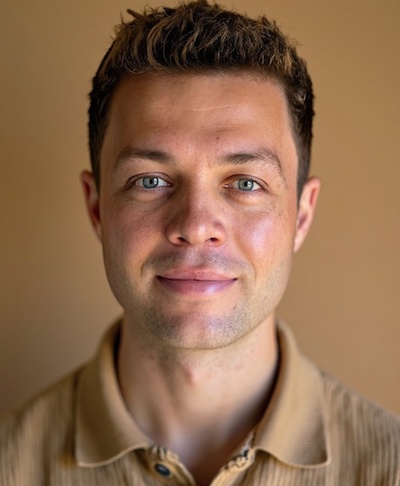
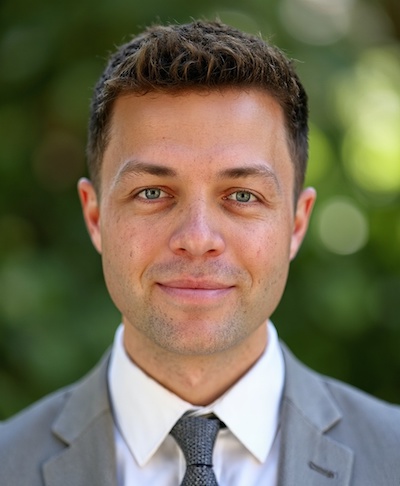
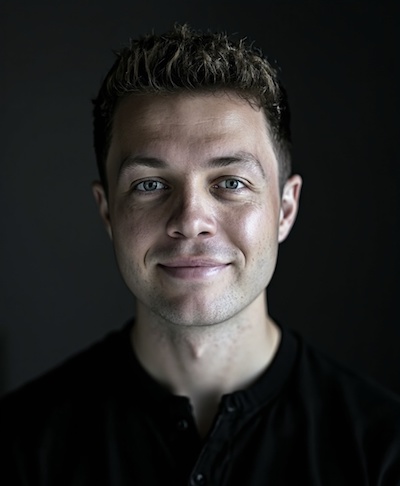
Examples of finished portraits you can download and save. See more on the examples page.
“If the picture is not in Photos, the download usually worked – the last save step is what is missing.”
FAQ: downloads and Save to Photos
Where do downloads go on iPhone?
Usually to the Files app, in the Downloads folder (on the iPhone or in iCloud Drive). They do not appear in Photos until you save them there.
How do I save a Headshots portrait to Photos?
Tap the download icon, open the picture full screen, touch and hold it, then tap Save to Photos. You will find it in Photos, typically under Recents or Recently Saved.
Where does the file go on a computer?
To your Downloads folder, or to the folder you chose if the browser asked. One click on the download icon is enough.
Can I download more than one portrait?
Yes. Download the looks you want, one at a time, with the same icon. Packs include 54, 96 or 150 portraits.
Can I use the photos on LinkedIn and in my CV?
Yes. Your downloads are yours to use on LinkedIn, in a CV, in your email signature and on a website. See also pricing and terms.
What if I am not satisfied?
You can get a refund within the first 7 days if you have not downloaded any images and your selfies followed the guidelines (see the terms). Choose your favourites before you download everything.
Get 54+ portraits you can save immediately
Upload about 10 selfies and get finished headshots in 10–30 minutes. From $29 · 100% satisfaction guarantee.
Create your headshots nowSee also AI headshot pricing and professional headshot examples – or team headshots for the whole company.